Tune Windows your way.
Game Mode and capture preferences, desktop responsiveness, and optional privacy choices. Select a small batch and review it first.
A focused tuning toolkit for your gaming PC. See your hardware, choose your changes, and keep control of what happens next.
01 / INSIDE EMBER
One clean workspace for hardware discovery, Windows tuning, and recovery. Every option comes with its effect and tradeoff.
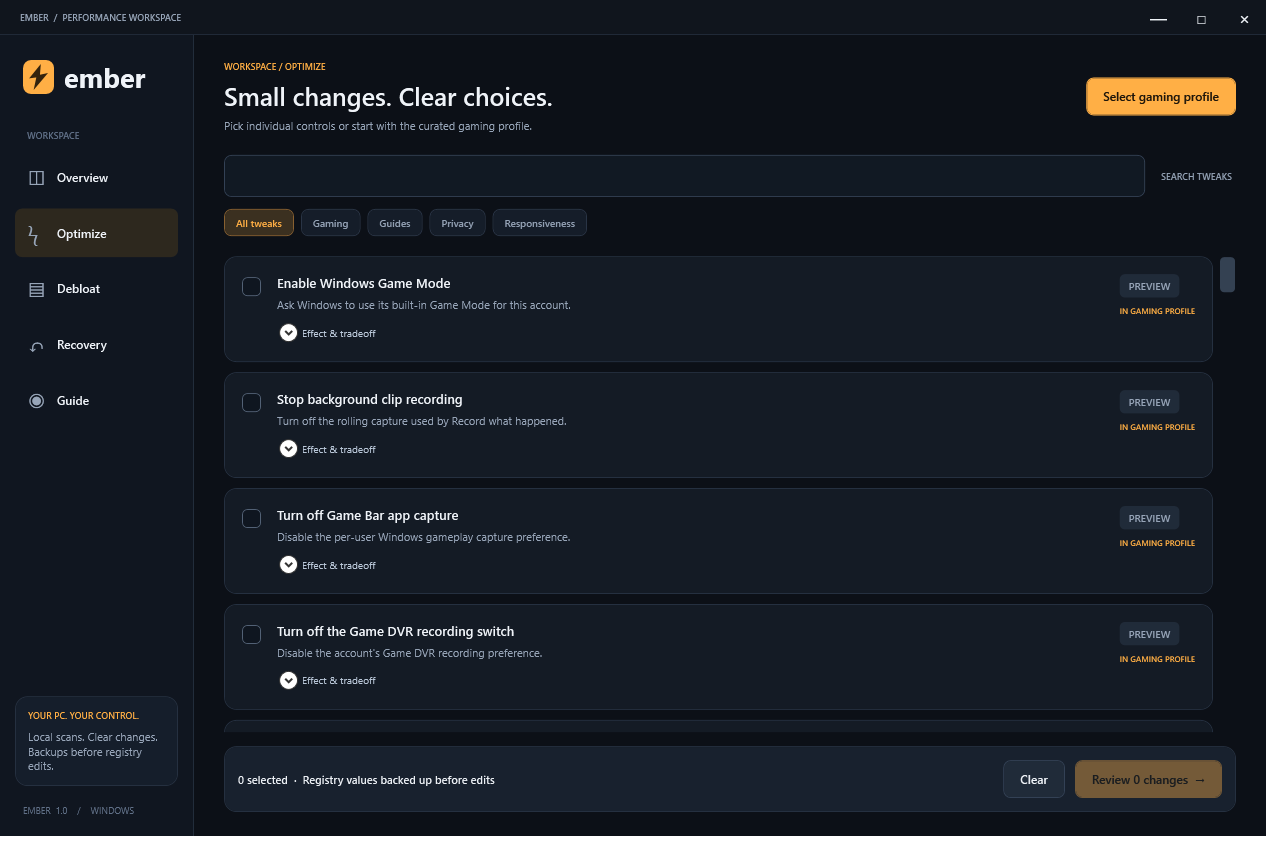
Game Mode and capture preferences, desktop responsiveness, and optional privacy choices. Select a small batch and review it first.
Choose individual apps to remove for your account. Nothing is preselected. Removal may delete local app data and has no automatic undo.
Walk through graphics settings, memory speed, drivers, startup apps, and consistent before-and-after testing.
02 / A REALISTIC STARTING POINT
Ember scans the PC it runs on, so its hardware panel shows your own specifications. Review each setting before applying a change.
Settings can help. Hardware still sets the limits. Desktop and privacy tweaks are not independent FPS boosts. Start with in-game resolution and quality, then measure which changes help your games.
Discover the processor, graphics, RAM and reported speed, storage, motherboard, Windows build, and graphics driver.
Start with seven selected gaming and visual settings. See the tradeoffs before anything changes.
Original registry values are backed up before edits. Recovery preserves newer conflicting values and reports them.
03 / READY WHEN YOU ARE
A Windows installer with the app, full source, documentation, and all 59 selectable options. No subscription.
Download Ember 1.0Ember-Setup-1.0.exe.Requires .NET Framework 4.8 and built-in Windows PowerShell. No administrator account required for supported actions.
Unsigned custom build. Review the included source and checksums. Keep Windows security protections enabled.
BEFORE YOU START
No. Results depend on your games, hardware, existing settings, and background workload. Some options only change appearance or privacy. Ember has no measured FPS-uplift claim, and its dashboard is not a benchmark.
No. Setup only installs Ember and shortcuts; it does not apply gaming tweaks. Normal app launch scans hardware and reads settings. Registry changes require selection and review. App removals have a separate confirmation explaining potential data loss.
Registry recovery restores saved original values when they do not conflict with newer changes. App removals are not covered: Microsoft Store may offer reinstalling, but app availability and local data recovery are not guaranteed. Changes you make manually in Windows Settings are also outside Ember’s registry recovery.
The Windows installer adds Ember, an uninstaller, and shortcuts for your account. It includes C# source and build scripts, all 71 catalog entries, documentation, license, checksums, and design previews. The catalog comprises 59 automated options and 12 manual guides.
No automated option disables antivirus, firewall, UAC, Windows Update, or security mitigations. Ember does not apply boot flags, CPU overclocks, or memory timing changes.